Coming to the MacFormerly Board

Decide what matters today.Let the board hold the rest.

Assemble is a calm project and task board for one person. Pick up to three things that must happen today, give everything else a day or a horizon, and let the board carry what you did not finish. It lives on your Mac, in one file that is yours.

We only email you about launch.

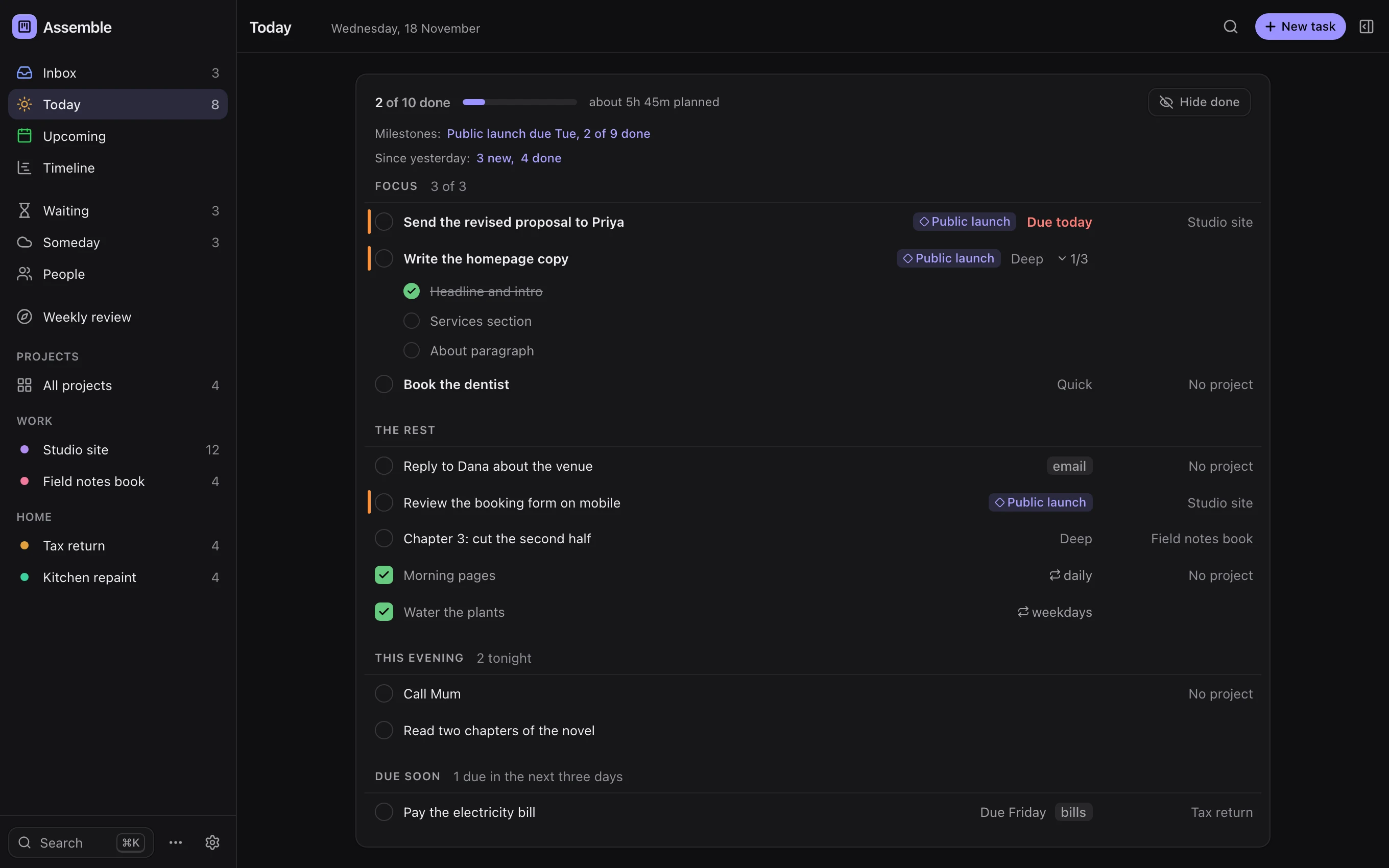
Assemble's Today view: three Focus tasks, the rest of the day, this evening and one bill due soon, with a progress line reading 2 of 10 done.

Real screenshots of Assemble, on a demo board.

How it works

Built around the day you actually have.

Assemble's work day turns at 4 a.m., not midnight, so a late night still counts as today. Each part of the day gets one job.

  1. 04:00

    The day starts itself.

    Anything you planned and did not finish moves to today, and Assemble counts each move. After three, a task with no deadline and no one to wait on goes back to its list instead of nagging you.

  2. Morning

    Pick up to three.

    Focus holds the things that must happen today. Press 1 on a task to add it. The rest of the day, this evening and anything due soon sit below, in that order.

  3. Any time

    Write it down as you think it.

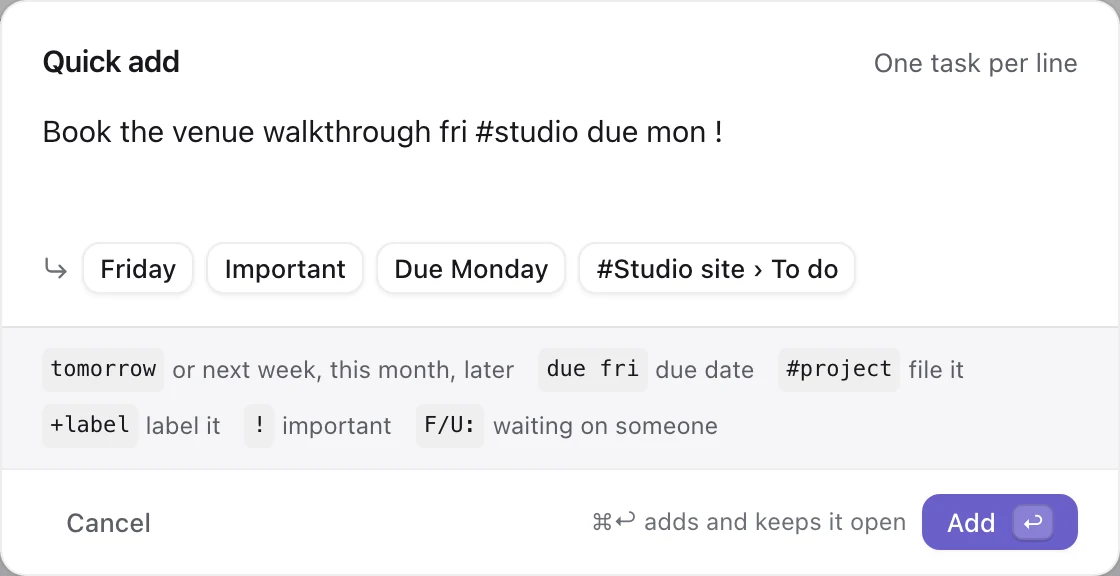
    Press ⌘I, or Control-Option-Space from any app, and type a sentence. A day, a #project or a deadline at the end of the line files it for you.

  4. Once a week

    Review, then plan.

    Six short steps: look back, clear the inbox, nudge whoever owes you, unstick stalled projects, choose the week's outcomes and give the work a day.

01Today

A short list you can actually finish.

Today shows what you planned in the order you will want it: Focus first, then the rest, then the evening. A progress line counts what is done and roughly how much time is planned, and quiet lines note a milestone coming up and what changed since yesterday.

  • FocusUp to three things. Press 1 to add or remove one.
  • This evening⇧E moves a task to tonight and back again.
  • Due soonDeadlines in the next three days you have not planned yet.
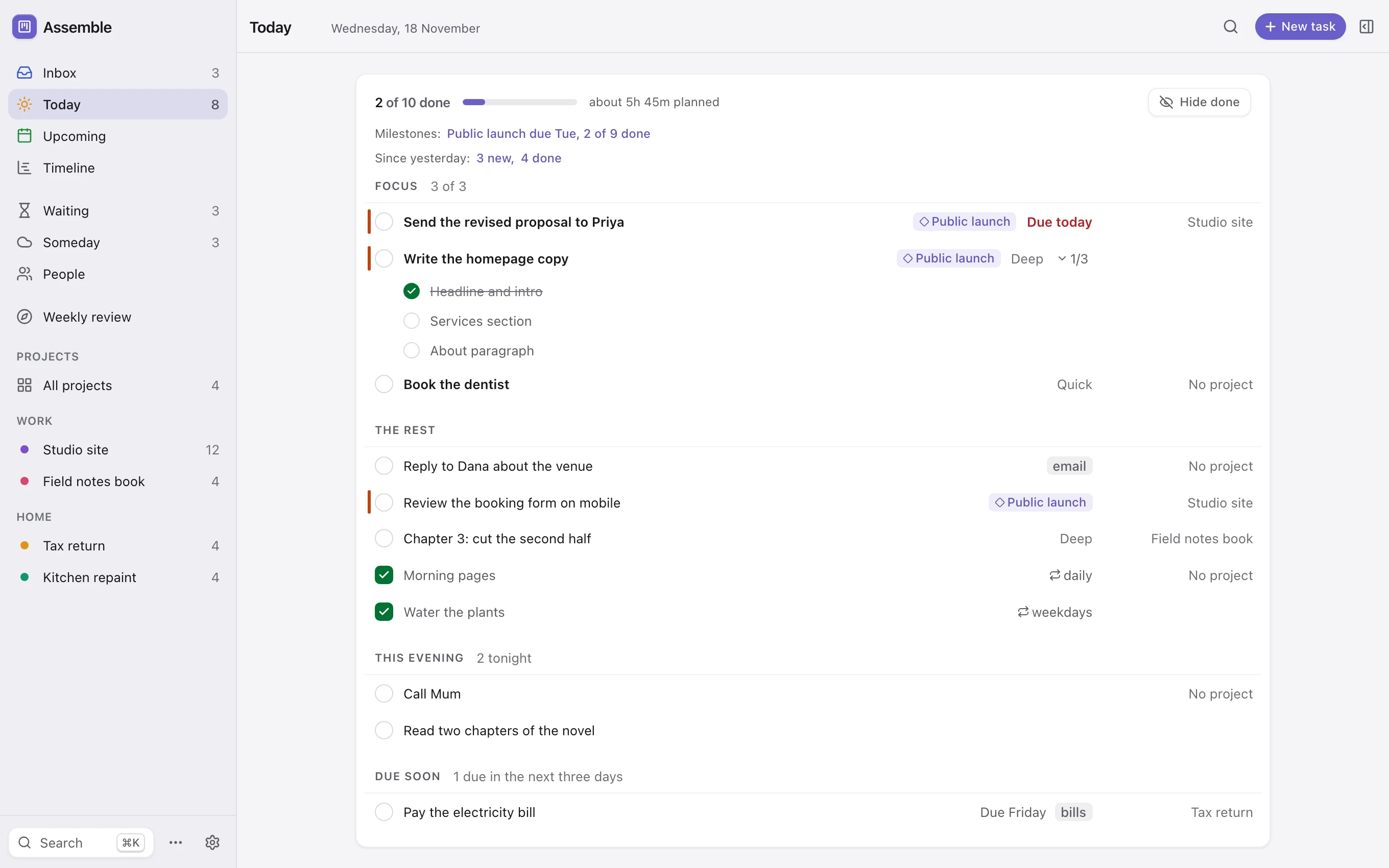
A closer look at Today: the progress line, the milestone and since-yesterday notes, and the Focus tasks.

02Upcoming

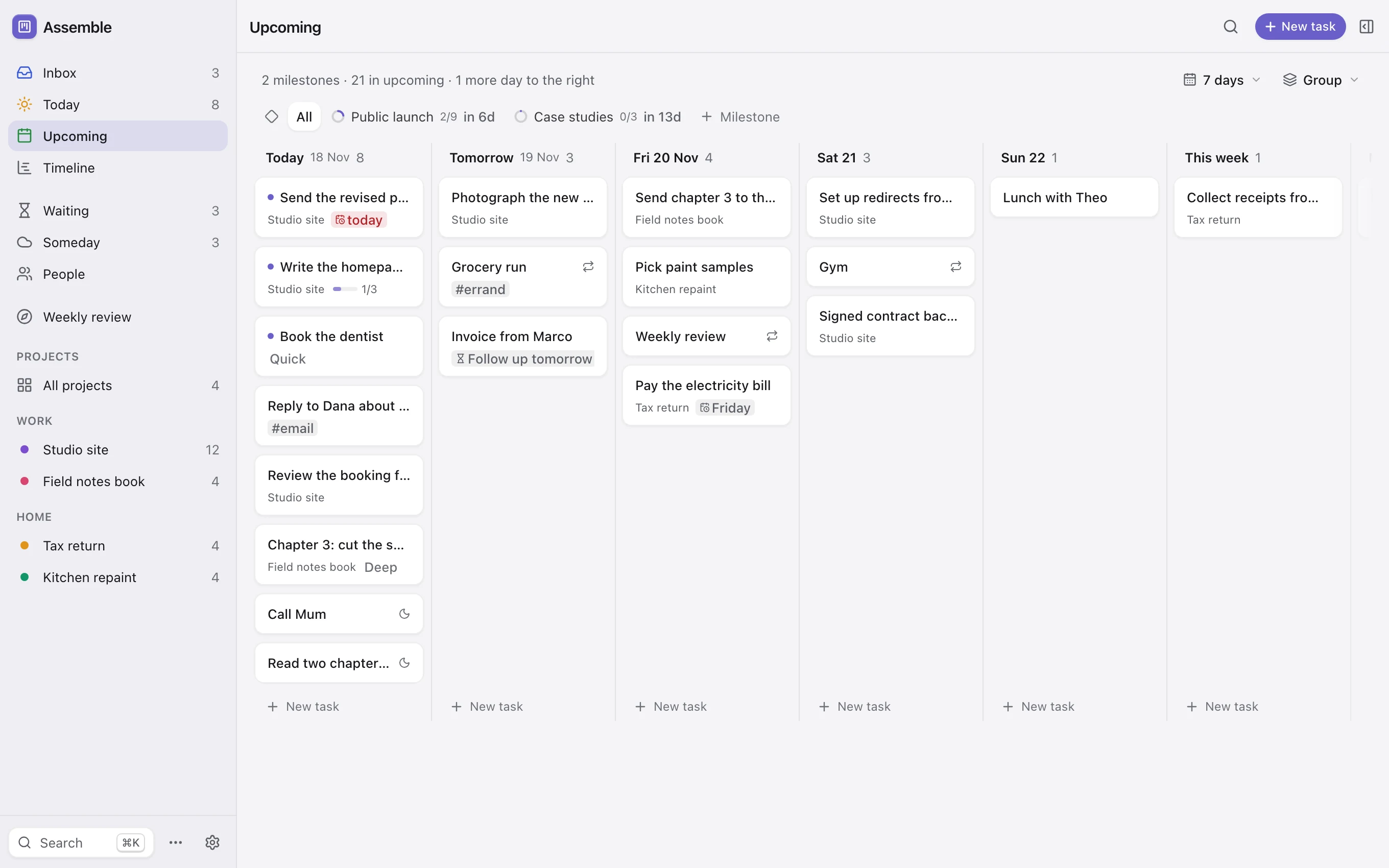
The week ahead, one lane per day.

Drag a task to another day, or move it with Option and an arrow key. A task due before the day you planned it shows on its due day, so a deadline never hides behind a plan.

  • MilestonesFilter the week to one milestone and see how far along it is.
  • RepeatsFinish a repeating task and the next one appears on its day.
  • Follow-upsWaiting tasks land on the day you said you would check.
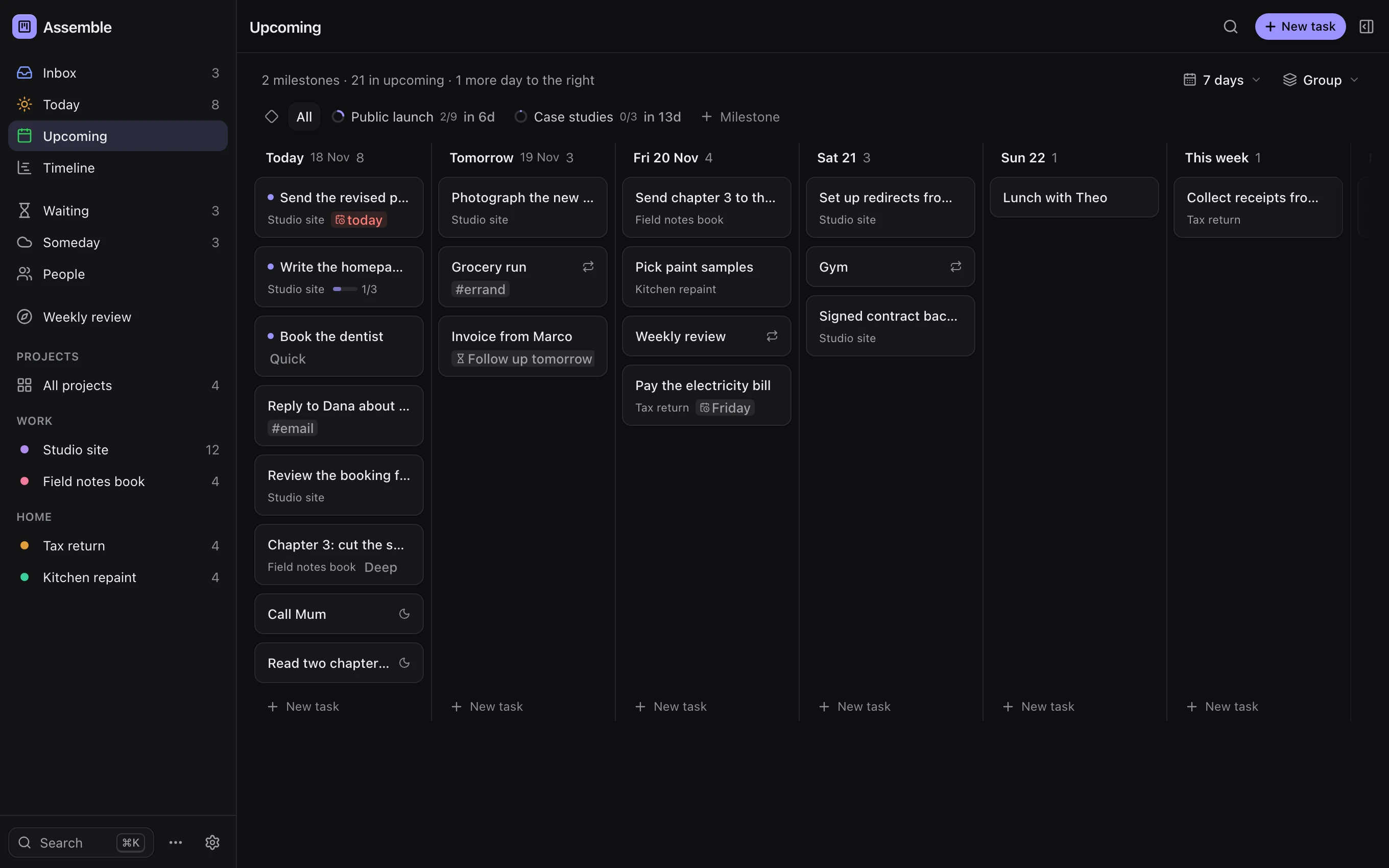
Upcoming: day lanes for today, tomorrow and the rest of the week, with a milestone filter above.

03Projects and timeline

Projects that stay put while the work moves.

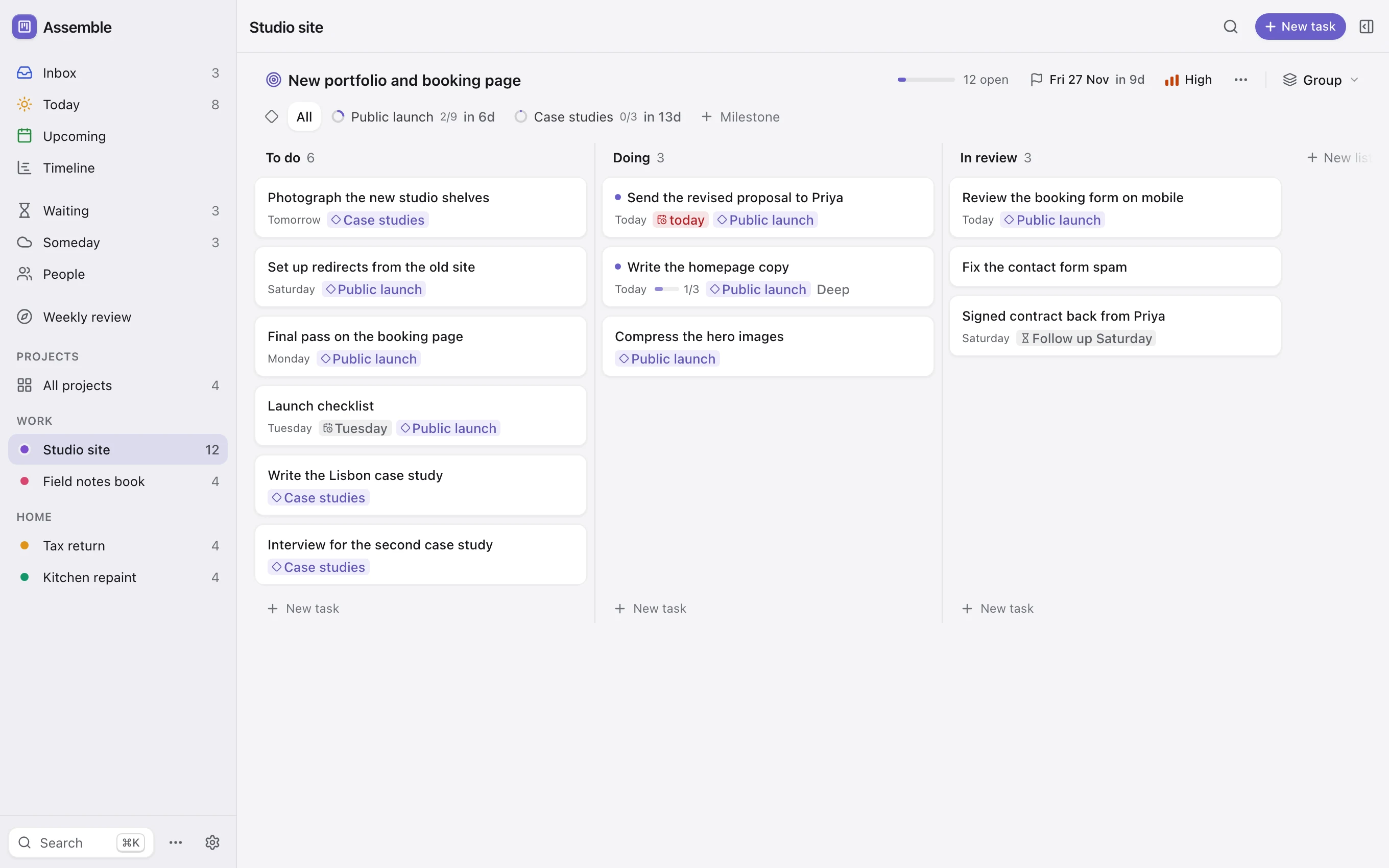
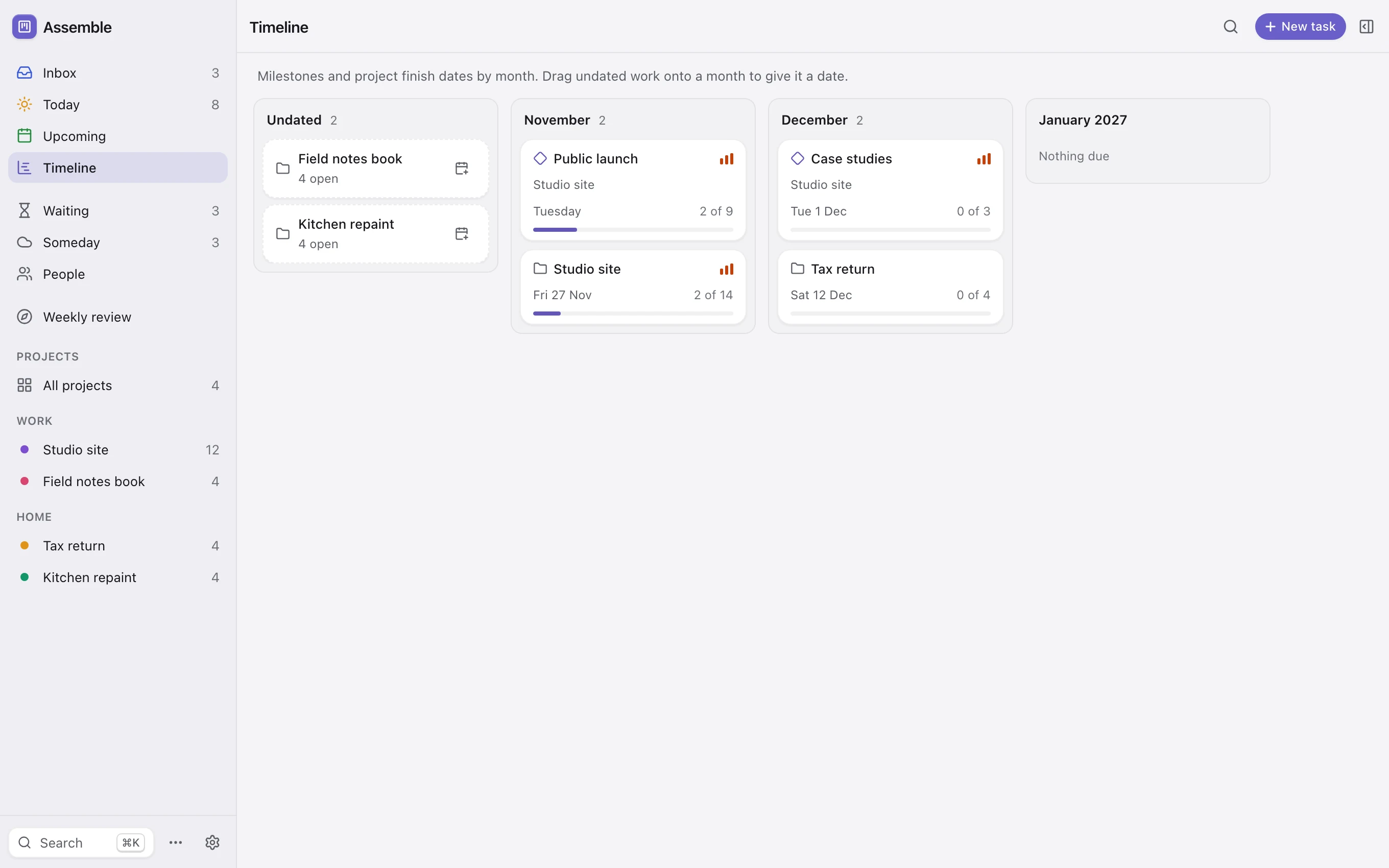
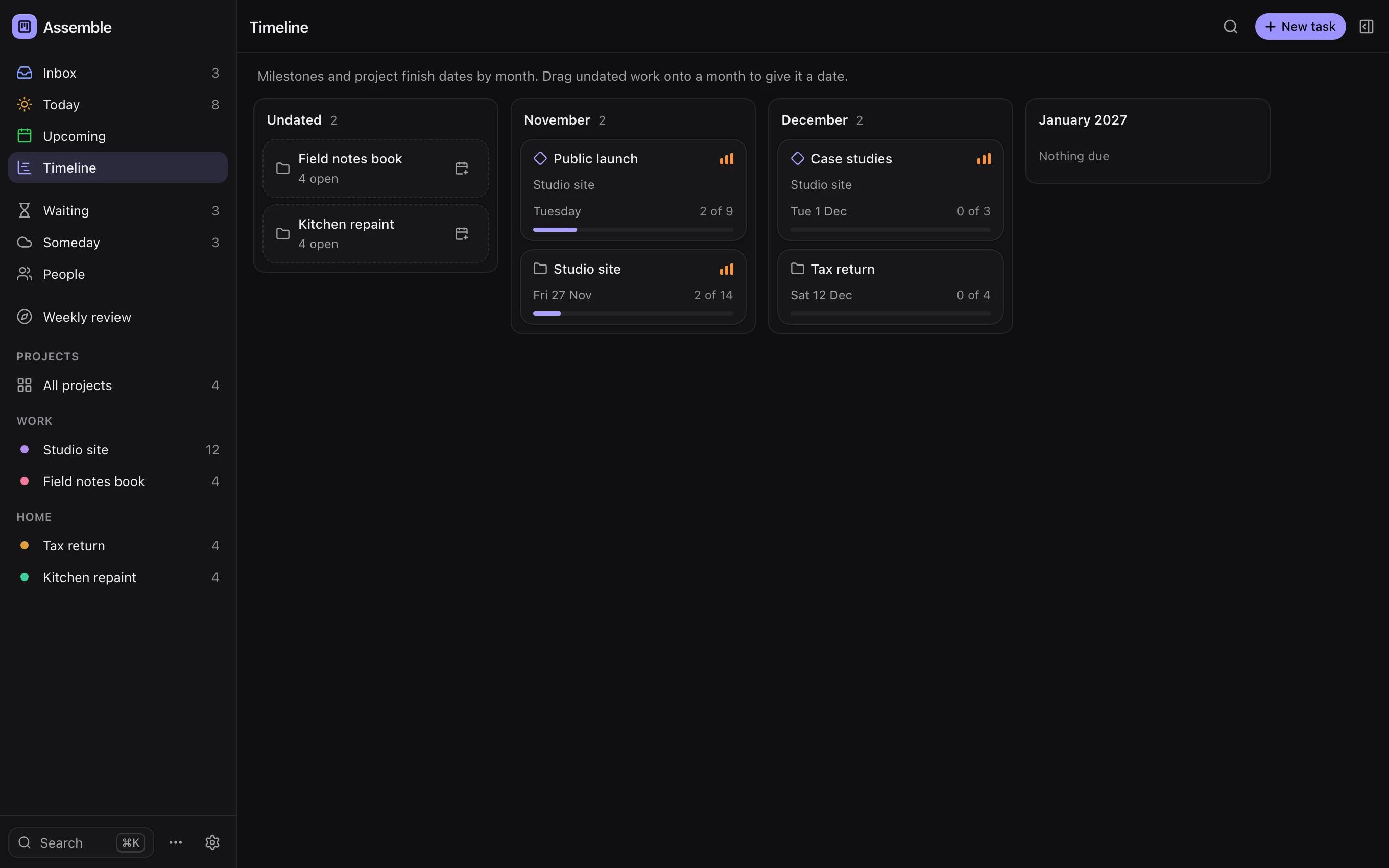
Each project is a board with your own lists and milestones with target dates. All projects shows every open project with its next steps, the ones that need a next step first. Timeline lays milestones and finish dates out by month.

  • ListsTo do, Doing, In review, or whatever fits. Drag cards and lanes.
  • AreasGroup projects under Work, Home or anything else.
  • TimelineDrag undated work onto a month to give it a date.
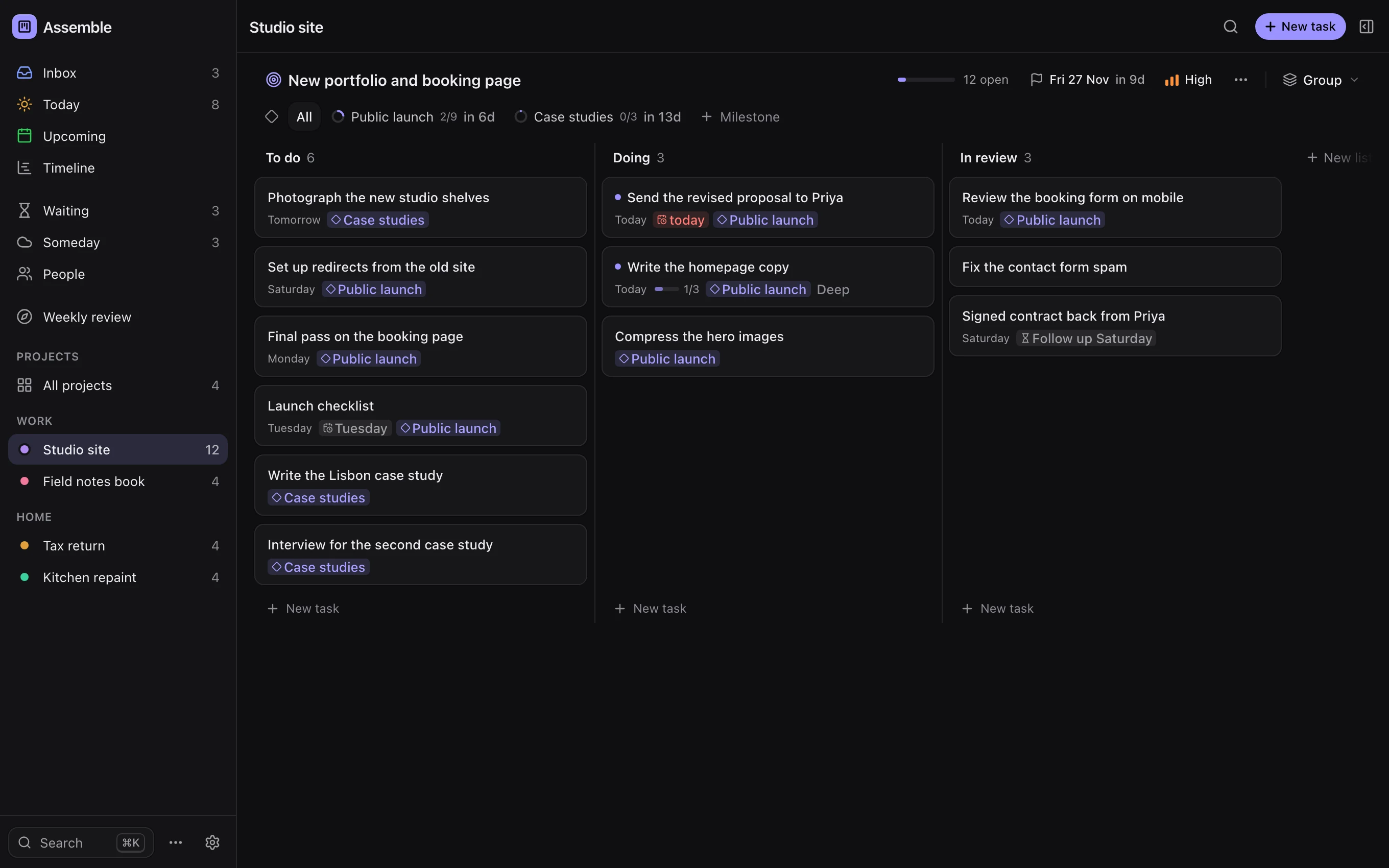
A project board with To do, Doing and In review lists and milestone chips on the cards.
Timeline: milestones and projects arranged by month, with progress bars.

04Weekly review

The weekly review, one step at a time.

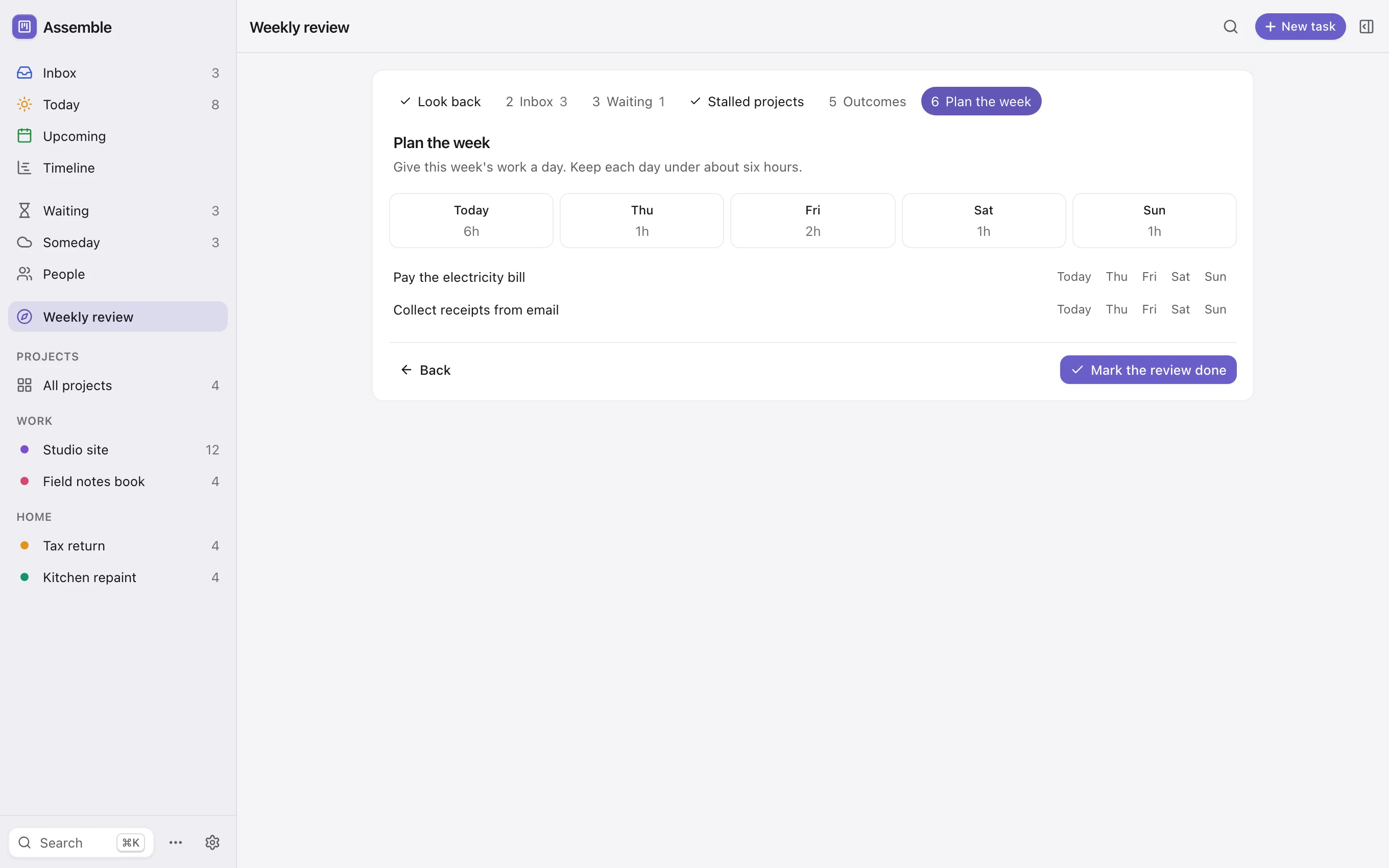
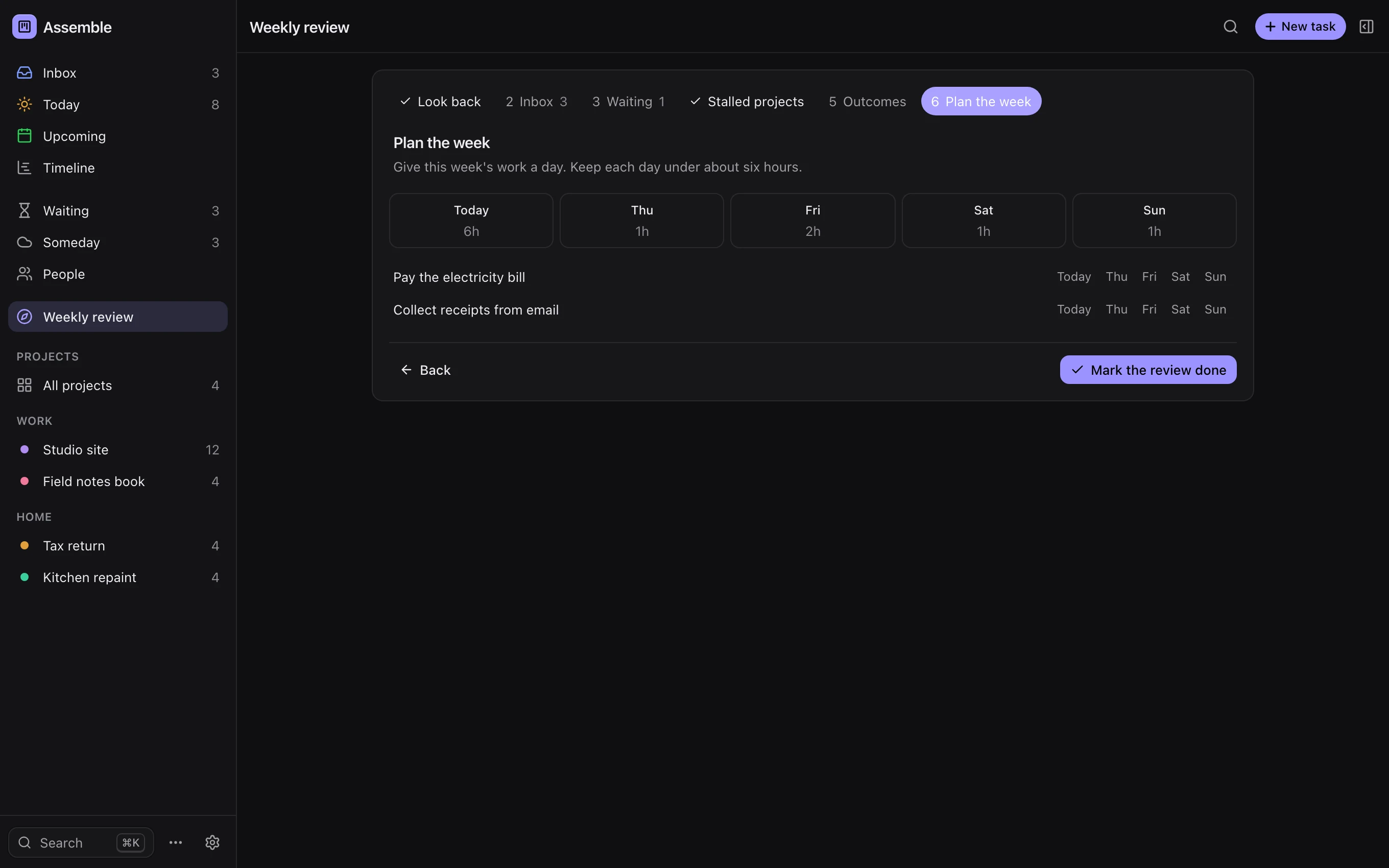
Look back at the week, clear the inbox, check on what you are waiting for, deal with stalled projects, choose up to three outcomes, then give the week's work a day. Plan the week shows the hours on each day, so none of them quietly fills up.

  • OutcomesPick up to three. Today tracks their progress.
  • StalledOpen a project to pick its next step, rest it for two weeks, or archive it.
The Plan the week step of the weekly review, with planned hours for each day.

Horizons

Plan by when, not by where.

Not everything needs a date. A task can sit on a horizon instead, and Today, Upcoming and the week are views over that one ladder, never separate places to file things.

So planning is moving a task up or down a rung: one key, or a word at the end of the line when you capture it.

  1. 01Todaytoday · T
  2. 02Tomorrowtmr · M
  3. 03This weekthis week
  4. 04Next weeknext week
  5. 05This monththis month
  6. 06Laterlater
  7. 07Somedaysomeday · ⇧S

Capture

Type it the way you would say it.

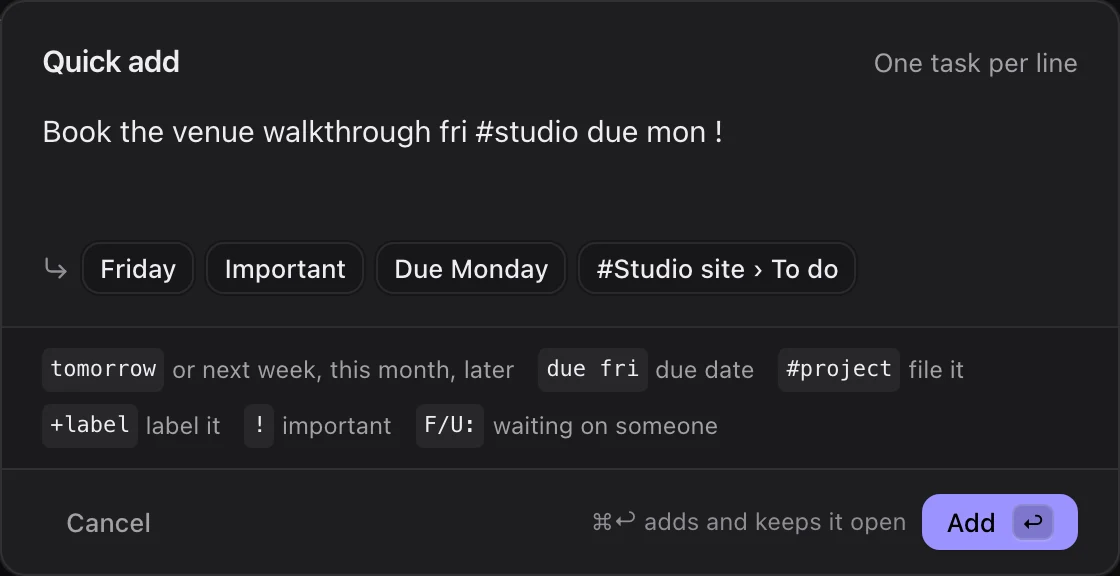
Quick add reads the end of each line for a day, a horizon, a deadline, a #project, a +label or a !. Everything before that stays in your words.

This box runs the same parser as the app. Try your own.

Quick addOne task per line
Inbox
fria daythis weeka horizondue mondeadline#projectfile it+labellabel it!importantF/U:waiting on someone
Projects here: Studio site, Field notes book, Tax return, Kitchen repaintRuns the real parser

Your hands stay on the keys.

Every action has a key and the command palette finds the rest. Move between tasks with J and K, act on the one you are on.

  • Quick add⌘I
  • Search and commands⌘K
  • Complete or reopenSpace
  • Do todayT
  • Do tomorrowM
  • Add to Focus1
  • This evening⇧E
  • ScheduleW
  • DeadlineD
  • Waiting on someoneF
  • RepeatR
  • Undo⌘Z

The quiet parts

Small things, done properly.

The parts you only notice when another app gets them wrong.

  • Repeats

    Daily, on weekdays or weekly. Finish one and the next is already waiting on its day.

  • Undo

    Every change is one step to take back, even a move of twenty tasks at once. ⌘Z undoes, ⇧⌘Z redoes.

  • Waiting on people

    Start a line with F/U: and the task waits on someone, with a day to follow up. The review brings it back.

  • Steps

    Break a task into steps without turning it into a project. Press S to add one; the task shows how many are done.

  • Command palette

    ⌘K finds any task, project or command, so the mouse stays optional.

  • Your look

    Light, dark or follow the Mac, an accent colour for each, and text up to twice the size.

The Mac app

Quick add from anywhere.

Press Control-Option-Space in any app and Assemble comes forward with Quick add open. Close the window and Assemble keeps running, so the shortcut is always there when a thought arrives.

  • NeedsmacOS 13 or later, on Apple silicon.
  • Native menusUndo, redo, copy and paste work the way the Mac does.
  • Under the hoodA private server on your Mac, with a new token every launch.

Local first

Your board is a file on your Mac.

No account, no sign in, no cloud copy. Assemble keeps everything in one database in a folder you can open, and saves each change as you make it.

~/Library/Application Support/Assemble
The data folder. Everything Assemble keeps lives here.
board.sqlite
Every task, project and list, in one file any SQLite tool can read.
backups/
A verified copy once a day, or whenever you press Back up now. The newest 30 are kept.
127.0.0.1
The app talks to its own server on your Mac and nowhere else.

Bring your own agent.

A local API lets your scripts and AI agents read the board and add tasks in the same capture language. Writes need the token in agent.json, which only you can read, and an idempotency key, so a retried request never adds a task twice.

$ cd ~/Library/Application\ Support/Assemble
$ curl -X POST "$(jq -r .url agent.json)/agent/v1/capture" \
    -H "Authorization: Bearer $(jq -r .token agent.json)" \
    -H "Idempotency-Key: passport-2026" \
    -d '{"text": "Renew the passport due fri"}'
{"chips": ["Due Friday"], ...}

Questions

Fair questions.

Who is Assemble for?

One person with more going on than fits in their head: work projects, home projects and the small things in between. It is not a team tool. There is no sharing, assigning or commenting.

Is this the app that was called Board?

Yes. Assemble was called Board while it was being built. Same app, new name.

Do I need an account or an internet connection?

No. The app runs on your Mac and keeps your data there. The only account in this story is your email on the waitlist.

Where does my data live, and can I take it with me?

In one SQLite file in ~/Library/Application Support/Assemble, next to daily verified backups. Any SQLite tool can open it, and copying the folder copies everything.

Which Macs does it run on?

macOS 13 Ventura or later, on Apple silicon.

Is there an iPhone app, or sync?

Not today. Assemble is a Mac app, and your board stays on that Mac.

Can my AI agent use it?

Yes, through the local agent API. Agents can read tasks and projects, follow changes, add tasks in the capture language and run the same actions the app uses. It listens on 127.0.0.1 only and every request needs the token.

What will it cost?

We have not set a price yet. People on the waitlist will hear first.

When does it launch?

When it is ready. Join the waitlist and we will send one email when you can download it.

Waitlist

Make room for what matters.

Assemble is in daily use and being readied for release. Leave your email and we will tell you when you can download it.

We only email you about launch.